Strategic games#
Gambit has full support for constructing and manipulating arbitrary N-player strategic (also known as normal form) games.
For extensive games, Gambit automatically computes the corresponding reduced strategic game. To view the reduced strategic game corresponding to an extensive game, select or click the strategic game table icon on the toolbar.
The strategic games computed by Gambit as the reduced strategic game of an extensive game cannot be modified directly. Instead, edit the original extensive game; Gambit automatically recomputes the strategic game after any changes to the extensive game.
Strategic games may also be input directly. To create a new strategic game, select , or click the new strategic game icon on the toolbar.
Displaying a strategic game#
Gambit displays a strategic game as a table. Each cell represents one strategy profile: one strategy choice for every player. The cell shows the payoffs that result when the players choose the strategies named by that cell’s row and column labels.
For a two-player game, Gambit initially uses the familiar matrix arrangement. One player’s strategies label the rows, and the other player’s strategies label the columns.
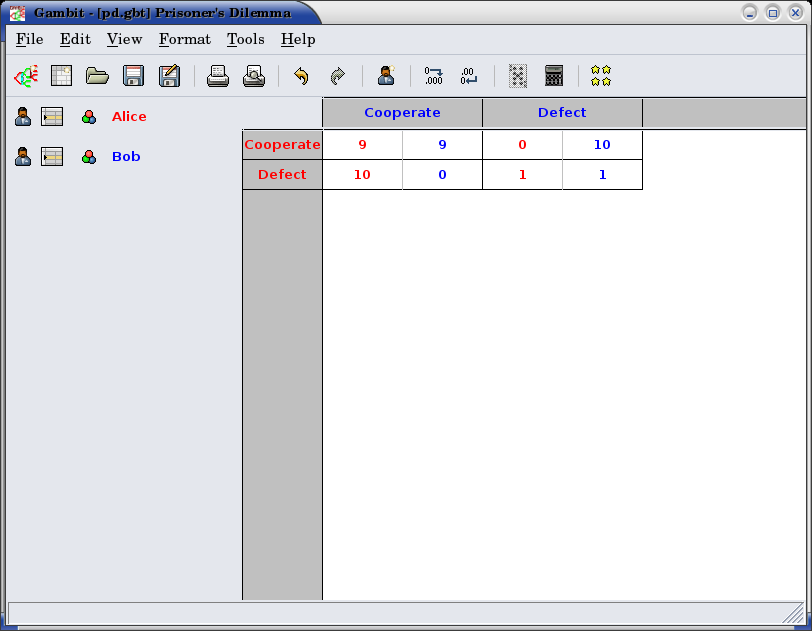
Each row-and-column combination identifies one strategy profile. For
example, a cell in the row labelled Cooperate and the column
labelled Defect represents the outcome in which the row player
chooses Cooperate and the column player chooses Defect.
The payoffs in each cell are colour-coded by player. In the standard two-player arrangement, Gambit displays the row player’s payoff first and the column player’s payoff second.
Row and column hierarchies#
Games with more than two players require more than one strategy label to identify each row or column. Gambit handles this by allowing several players to be assigned to the rows, several players to be assigned to the columns, or both.
When several players are assigned to the same side of the table, their strategy labels form a hierarchy. Each level groups together the strategy combinations belonging to the players below it. This is similar to the hierarchical row and column labels used in a pivot table or a table with a multi-level index.
For example, suppose Alice and Bob are both assigned to the rows. If Alice is above Bob in the row hierarchy, Gambit first groups the rows by Alice’s strategy and then lists Bob’s strategies within each group.
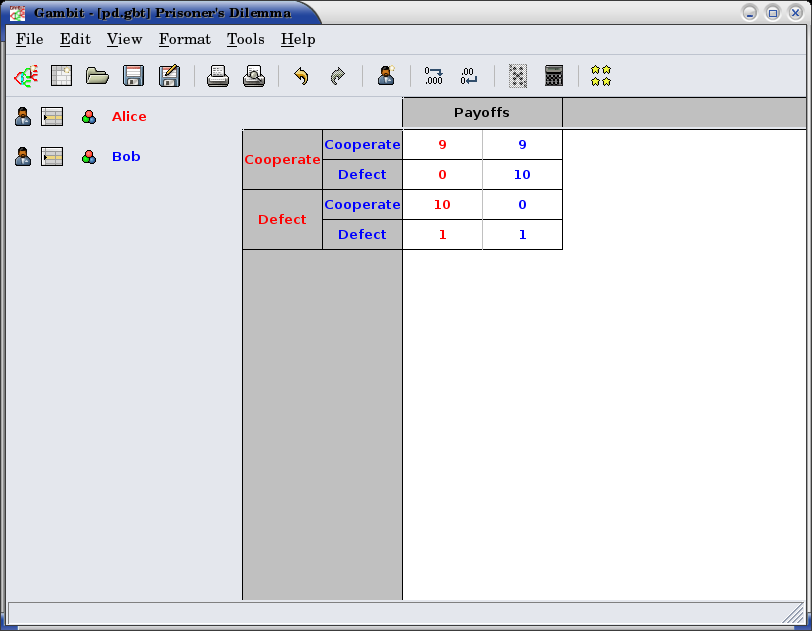
Reversing their order groups the rows first by Bob’s strategy and then by Alice’s. The strategy profiles and payoffs do not change; only their arrangement in the table changes.
The same principle applies to the columns. A player placed at a higher level of the column hierarchy forms the outer grouping, while players at lower levels form groups within it.
This arrangement provides a single table view of games that are often printed as a collection of separate payoff matrices. For example, a three-player game can be displayed with one player on the rows and two players in a column hierarchy, rather than as a separate matrix for each strategy of the third player.
Rearranging the table#
To change the table arrangement, drag a player from the player list to the row-label or column-label area.
When the drop menu appears, choose where to place the player in the row or column hierarchy. Gambit updates the display without changing the game itself.
The available positions depend on the current arrangement. Placing a player before another player makes the moved player a higher level in the hierarchy; placing the player after another player makes the moved player a lower level.
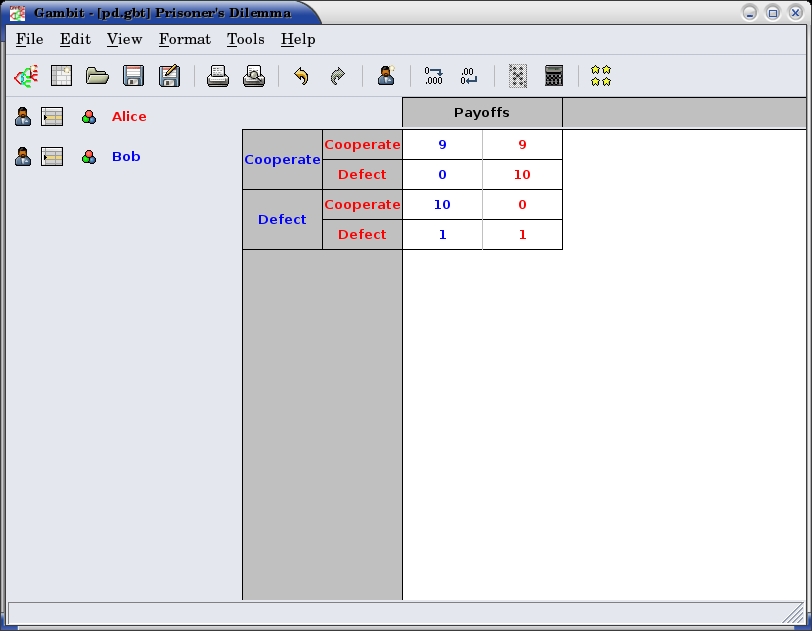
Changing the row and column hierarchies may also change the order in which payoffs appear within each cell. The colour of each payoff continues to identify the player to whom it belongs.
Note
Rearranging the table changes only the presentation of the game. It does not change the players, strategies, outcomes, or payoffs.
Changing players and strategies#
To add an additional player to the game, use the menu item , or the corresponding toolbar icon . The newly created player has one strategy, by default labeled with the number 1.
Gambit supports arbitrary numbers of strategies for each player. To add a new strategy for a player, click the new strategy icon located to the left of that player’s name.
To edit the names of strategies, click on any cell in the strategic game table where the strategy label appears, and edit the label using the edit control.
Right-clicking a strategy label creates a popup context menu. This menu offers the ability to delete the selected strategy from the game. It is not possible to delete a player’s only strategy.
Editing payoffs#
Payoffs for each player are specified individually for each contingency, or collection of strategies, in the game. To edit any payoff in the table, click that cell in the table and edit the payoff. Pressing the Escape key (Esc) cancels any editing of the payoff and restores the previous value.
To speed entry of many payoffs, as is typical when creating a new game, accepting a payoff entry via the Tab key automatically moves the edit control to the next cell to the right. If the payoff is the last payoff listed in a row of the table, the edit control wraps around to the first payoff in the next row; if the payoff is in the last row, the edit control wraps around to the first payoff in the first row. So a strategic game payoff table can be quickly entered by clicking on the first payoff in the upper-left cell of the table, inputting the payoff for the first (row) player, pressing the Tab key, inputting the payoff for the second (column) player, pressing the Tab key, and so forth, until all the payoff entries in the table have been filled.